AlphaLuma Recipe Lab: Tune Sony Creative Look on Live View
Short answer: AlphaLuma Recipe Lab is the iPhone screen where you tune a Sony Creative Look while watching the camera's live view, then write the result into a Custom Look slot or save it as a recipe. It arrived in AlphaLuma 1.1.3 on the international App Store (2026-10-03, UTC) and in 1.1.5 in the China edition (2026-09-29), and it runs on the connection you already have: USB, Bluetooth, Wi-Fi or the same network. The camera needs Creative Look in its menu, and not every body is verified for wireless yet; see Supported cameras. AlphaLuma is a third-party app, not affiliated with Sony. Not to be confused with Recipe Lab for the α6000, an open-source app that runs inside older Creative Style cameras.
Tune on the live view, keep what you like
Dialing in a Sony recipe used to go like this: change one item in the camera menu, take a shot, play it back, go back into the menu for the next item. A Creative Look has eight adjustments, plus white balance and two shift axes — dozens of round trips are normal.
AlphaLuma Recipe Lab moves that loop onto your phone. What you see is the camera's own live output, and every notch you turn shows up in the frame right away. When it looks right, write it into a Custom Look slot or save it as your own recipe.
What you need
- An iPhone on iOS 16 or later and AlphaLuma 1.1.3 or later (China edition 1.1.5 or later).
- A Sony body with Creative Look, connected over Bluetooth, Wi-Fi, the same network or USB — see the wireless connection guide.
- Creators' App and Imaging Edge closed — the camera takes one remote connection at a time.
No computer and no extra Sony app are needed.
What's on the screen
Open it from the Recipe Lab card on the home screen. The page has three parts:
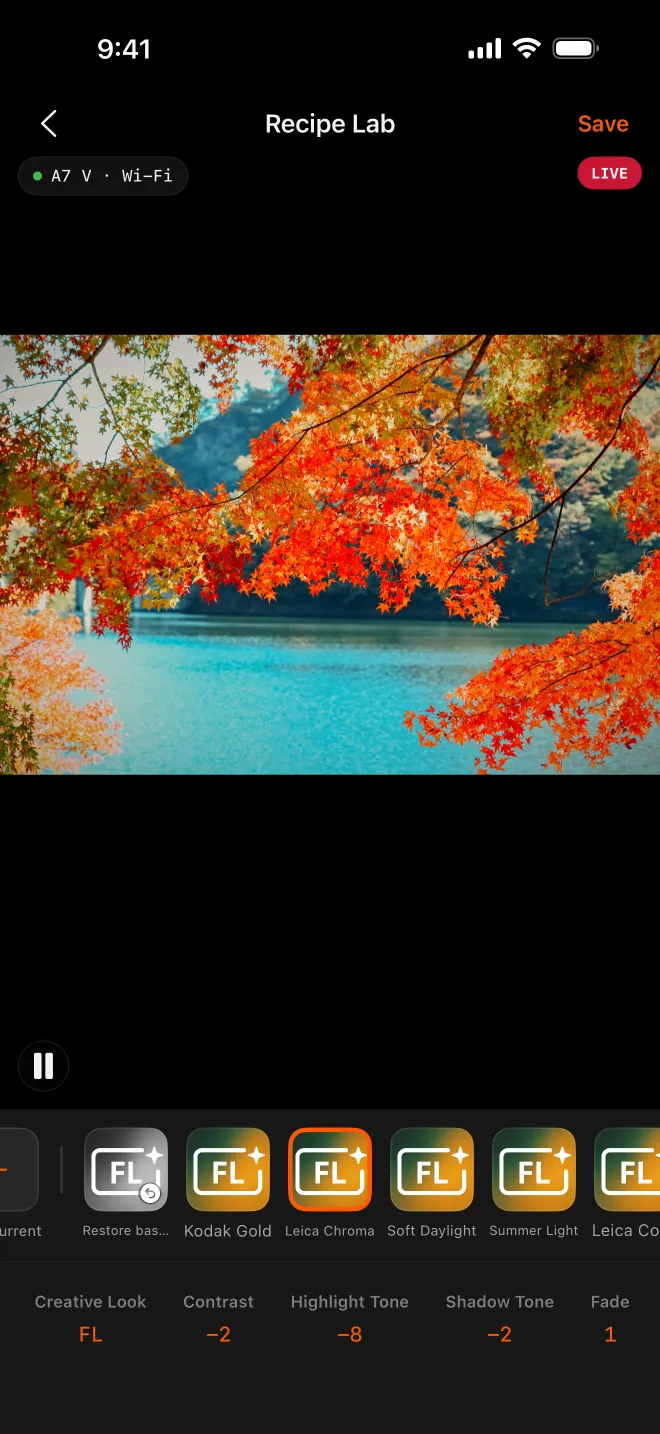
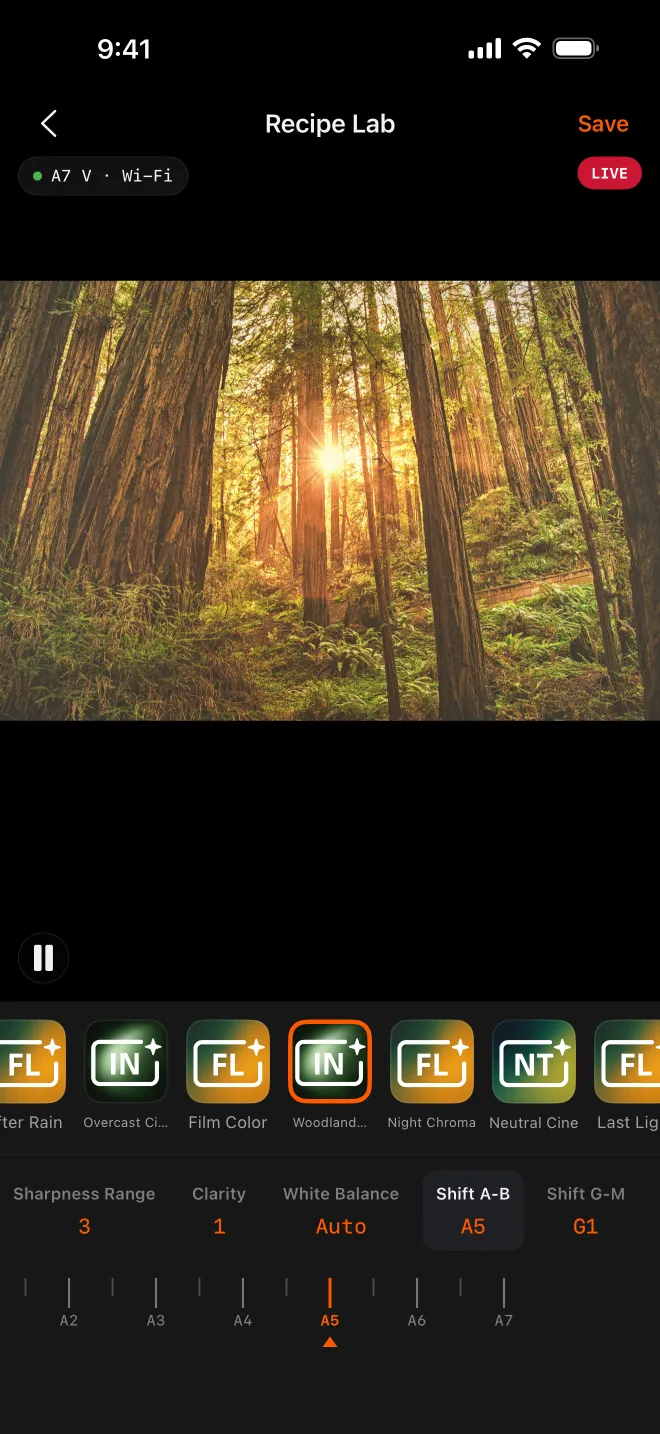
- Live view fills the top half, with the connected model and connection type at the top left, a LIVE badge at the top right, and a pause button at the bottom left.
- The recipe strip — a row of cards. On the left, Save Current and Restore Baseline; after them, recipes you've picked yourself. Tap a card and the whole recipe goes into the camera.
- The adjustment bar — Creative Look, the eight adjustments, white balance, color temperature and the two shift axes. Tap one and its picker or dial opens underneath.
It sits alongside two other features: Camera Monitor answers "is this shot right?" (landscape, full screen, with focus peaking and zebras); Send Recipe to Camera puts one ready-made recipe into the camera; Recipe Lab answers "what should this camera look like?"
It needs a connected camera — Bluetooth, Wi-Fi, same network or USB all work; see our wireless connection guide. If you open it unconnected, tap Connect Camera, pick a path, and you land back in the lab once connected.
What you can adjust
- Creative Look — every base look your camera supports (ST, PT, NT, VV, VV2, FL, IN, SH, BW, SE, plus FL2 and FL3 on some bodies). The list is read from your camera, not hard-coded.
- Contrast, Highlights, Shadows, Saturation — −9 to +9.
- Fade, Sharpness, Clarity — 0 to 9.
- Sharpness Range — 1 to 5.
- White Balance — every mode the camera offers, including Custom 1/2/3.
- Color Temperature — 2500K to 9900K in 100K steps, shown when white balance is set to a Kelvin mode.
- WB shift A–B — ±7 steps, down to half steps (amber–blue).
- WB shift G–M — ±7 steps, down to quarter steps (green–magenta).
Names follow the camera's own menu, and looks use the short codes printed on the body, so what you see in the app matches what you see on the camera.
How to use it
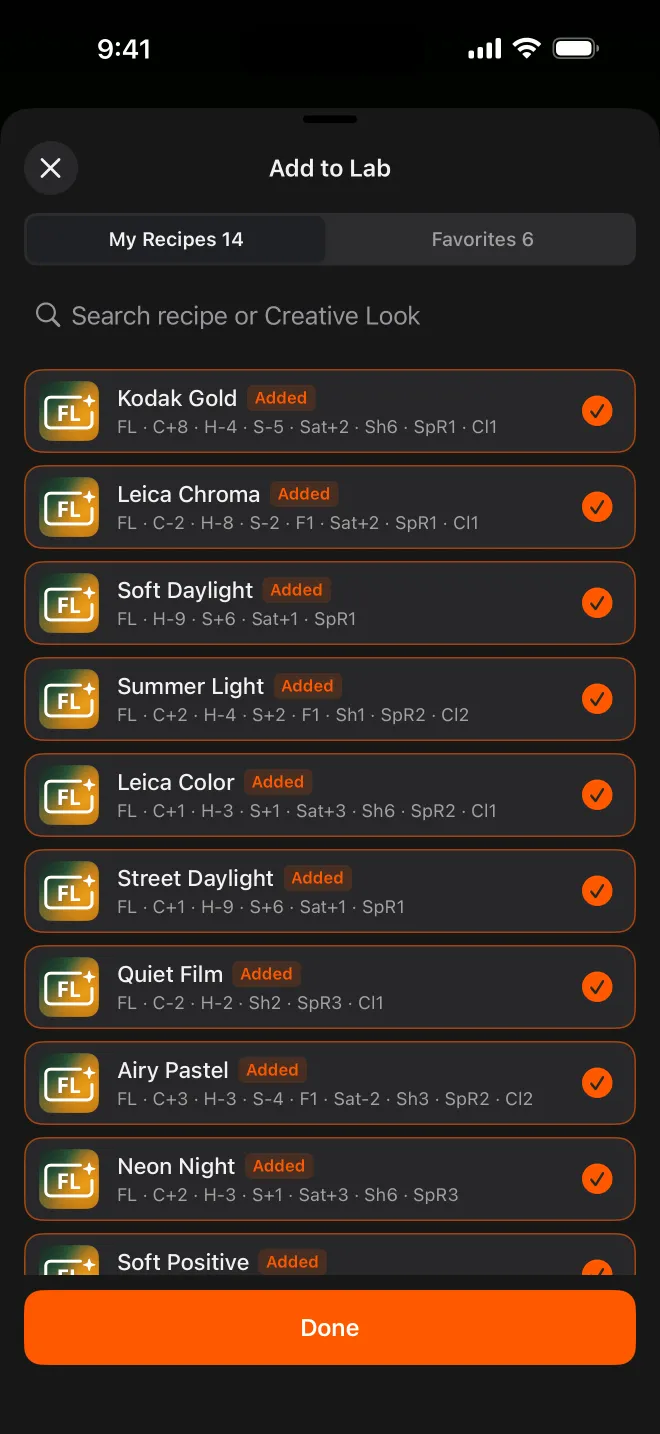
1. Put recipes on the strip. Scroll to the end of the strip and tap Add Recipe. The picker has two tabs — My Recipes and Favorites — and you can search by name or look. Tick what you want and tap Add. To take a card off the strip, long-press it and choose Remove from Lab; the recipe itself stays in your library.
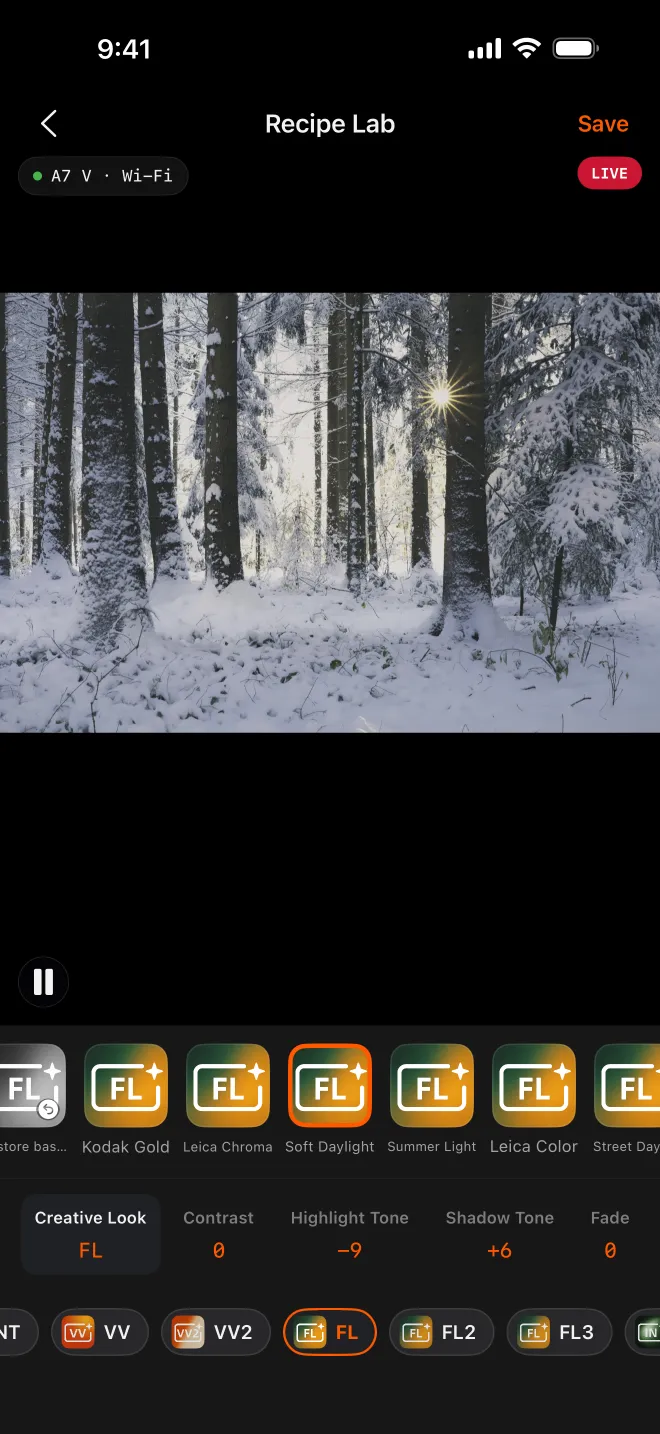
2. Tap a card and watch. The whole recipe — look, eight adjustments, white balance — is written to the camera in one go, the frame updates, and the card is highlighted as applied. Prefer to start from the camera's current look? Tap Creative Look in the adjustment bar and switch from there.
3. Turn the dials. Tap an adjustment, say Contrast, and a dial appears. Drag it — the new value is written when you let go, and the frame follows. Nothing is sent while you're still dragging, so a sweep across the dial never fires a string of changes at the camera.
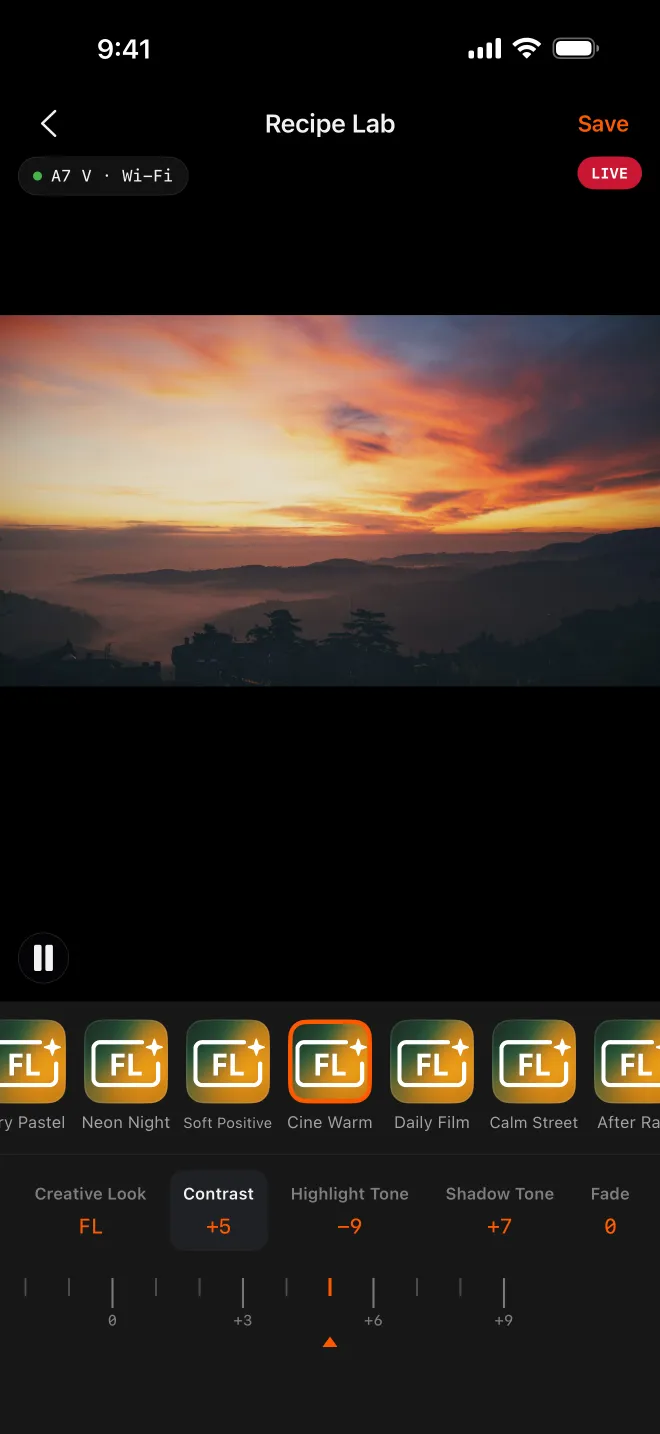
White-balance shift works the same way, with A–B and G–M as separate dials: whole steps are numbered, half and quarter steps are minor ticks.
Lost your way? Restore Baseline writes back the Creative Look, its eight adjustments and white balance as AlphaLuma recorded them once for this connection: at the moment you connect over Bluetooth, Wi-Fi or the same network, or over USB the first time you open Recipe Lab or Camera Monitor after plugging in. Later tweaks and trips in and out of the lab don't update it, so it also undoes changes made elsewhere in the app since then, such as a look switched in Camera Monitor. Disconnecting, a dropped link or unplugging discards it, and the next connection records a fresh one. It's always available.
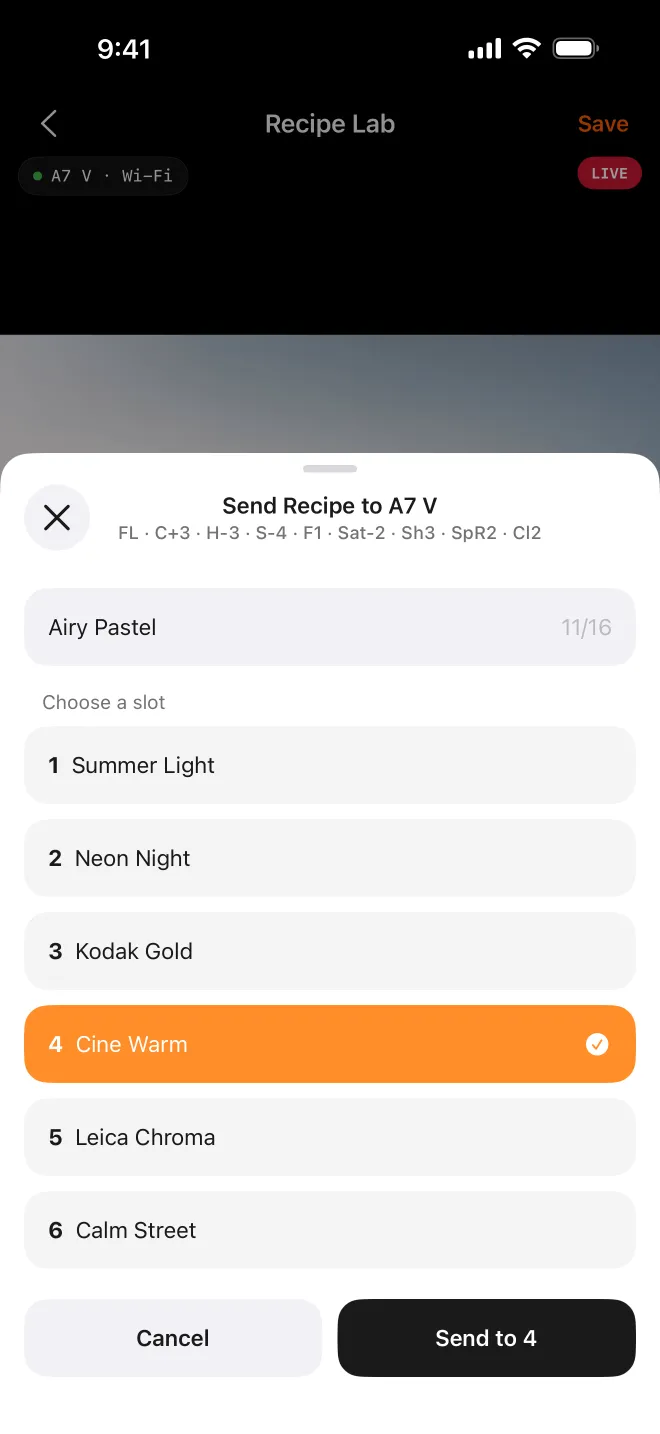
4. Keep it in a Custom Look slot. Everything so far changes the camera's current settings. To keep a recipe on the camera and switch to it from the body at any time, write it into a slot: long-press a card and choose Send to Camera, or tap Save → Send to Camera to write what the camera is set to right now, hand-tuned dials included. Name it, then pick one of the six Custom Look slots — each shows what AlphaLuma last wrote there — and confirm.
Save it, share it
Found a look you like? Tap Save Current on the strip, or Save → Save to recipe library, and the camera's current settings become a recipe of your own, with the current frame as its thumbnail.
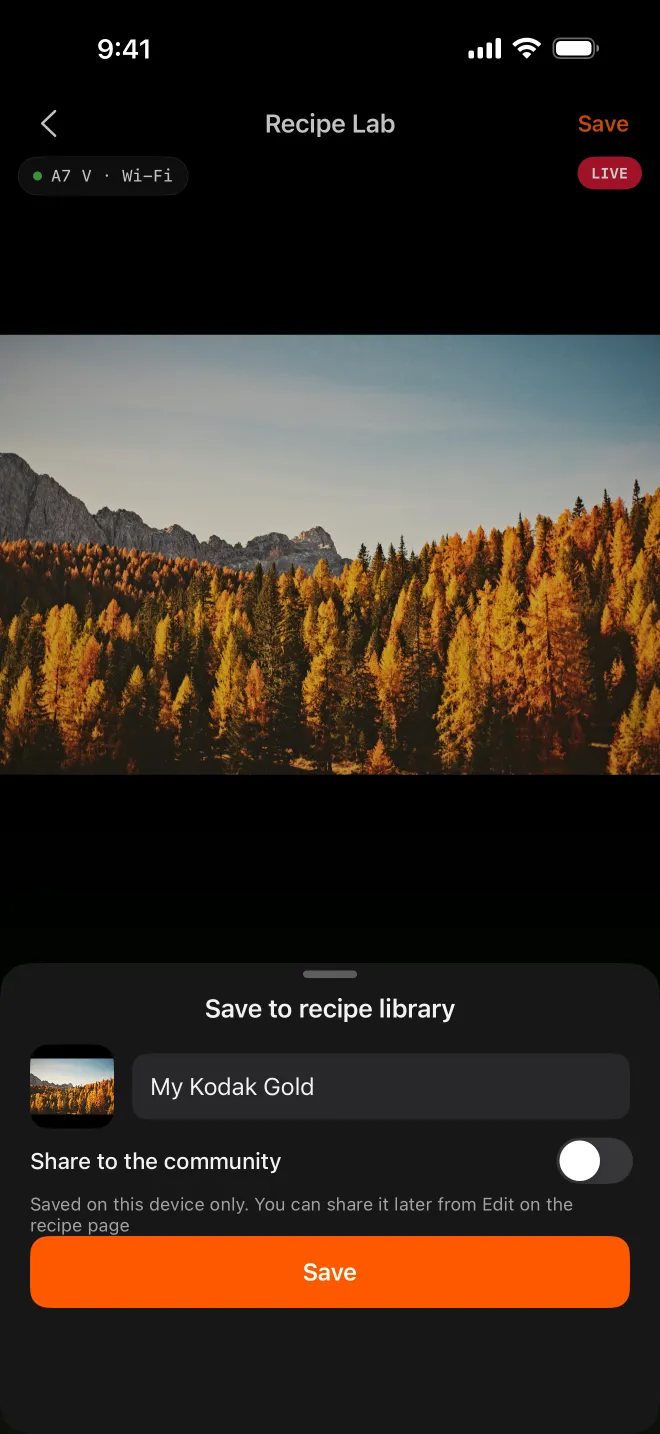
- Name — pre-filled and editable, up to 24 characters.
- Share to the community — off by default; with it off, the recipe stays on your phone, and you can publish it later from the recipe's Edit page. Publishing needs a profile photo and nickname. If there's no live frame, or the settings are almost all defaults, the switch is greyed out with the reason.
The saved recipe appears on the strip and in My Recipes straight away. If publishing fails — no network, not signed into iCloud — the card carries a small badge; long-press it and choose Publish Again later.
It also works the other way round: open the lab and tap Save Current, and whatever is set on the camera right now becomes a recipe in the app. Looking for recipes to start from? Free recipe cards, with every value listed, are on our sister site sonyfilmsimulations.com.
Built not to surprise your camera
Every write changes your camera's real settings, so the lab is careful about it:
- Written on release, skipped when unchanged. Dragging sends nothing, and a value that's already set isn't written again.
- One recipe at a time. A recipe is several writes; anything else you do waits its turn, so two recipes never interleave. Tap Back mid-write and you're asked whether to cancel.
- Read back after writing. The camera's actual values are read back and compared.
- Interruptions are stated plainly. If the connection drops mid-write, the app says the import didn't finish, that what was already written stays on the camera, and asks you to check it there.
- Slots are confirmed before they're overwritten.
A few things that catch people out:
- Picture Profile locks Creative Look. If a Picture Profile is on when you enter the lab, the app turns it off first and tells you. It only does this on Creative Look bodies.
- White balance doesn't go into a Custom Look slot. That's the camera's rule — WB is a global setting, not part of a look — and the slot page says so.
- Custom WB 1/2/3 can't be saved into a recipe. Those values are measured on location and wouldn't make sense elsewhere; if the camera is on a custom WB when you save, you're told.
- Portrait only. For a full-screen landscape view, use Camera Monitor.
How it differs from other recipe tools
"Recipe Lab" and "recipes" mean different things in different tools, so here is where AlphaLuma Recipe Lab sits:
- Recipe Lab for the α6000 (open source) — a PlayMemories Camera App installed inside the camera itself, for the α6000 and similar older bodies. Its recipes are built from Creative Style settings. AlphaLuma Recipe Lab runs on your iPhone and works with the newer Creative Look bodies. Different app, different cameras.
- JPEG.CAM — another in-camera PlayMemories app for the same older bodies, so it doesn't overlap with AlphaLuma.
- Creators' App (Sony, official) — since version 3.5 it delivers Sony's own creator Looks. Recipe Lab is for tuning your own, live, and writing community recipes. See Creators' App vs AlphaLuma.
- Imaging Edge Edit (Sony, on a computer) — re-applies a Creative Look to RAW files after the shoot. Recipe Lab sets the look in the camera before you shoot, so the JPEG comes out finished. See Imaging Edge and Creative Look.
- Lightroom's camera-matching profiles — reproduce the base look only, without the eight adjustments.
- Camera Monitor (inside AlphaLuma) — landscape, full screen, with zebra, false color and peaking, for checking a shot. Recipe Lab is portrait and built for tuning the look.
AlphaLuma is a third-party app, not affiliated with Sony.
Which cameras
Recipe Lab needs Creative Look in the camera menu. Verified by writing over USB (last checked 2026-10-06): α7 V, α7 IV, α7C II, α7CR, α7R V, α7R VI and ZV-E1; the α7 V and α7R V are also verified over Bluetooth, Wi-Fi and LAN. Other Creative Look bodies haven't each been tested yet — see the full table on Supported cameras; we'd love to hear how yours does.
Bodies on the older Creative Style — α7 III, α7C, α7R IV, α6400, α6600, ZV-E10 — use a different set of parameters, so recipes can't be written to them; the lab tells you so when it connects. The full table is on Supported cameras.
Frequently asked questions
Is AlphaLuma Recipe Lab the same as the Recipe Lab app for the α6000?
No. That Recipe Lab is an open-source app installed inside the camera for the α6000 and other Creative Style bodies. AlphaLuma Recipe Lab runs on your iPhone, connects to bodies with Creative Look, and writes Creative Look settings and Custom Look slots.
Can I try it without a camera?
No — the frame and every value come from the camera.
Is the live view what the photo will look like?
It's the camera's live output with the current look applied, so it's close to the straight-out-of-camera result. Exposure, lens and quality settings still play a part, so check a playback frame when it matters.
Does tuning cost anything?
Dragging adjustments, Restore Baseline and Save Current are always free, and so is saving the camera's current settings to a slot. Applying a recipe card, or writing one into a slot, uses your recipe allowance — the same recipe counts once and recipes you created don't count. Pro has no limit.
Will a recipe card wipe my camera's settings?
It replaces the current settings, but Restore Baseline writes back the Creative Look, eight adjustments and white balance recorded for this connection — when you connected wirelessly, or over USB the first time you opened Recipe Lab or Camera Monitor after plugging in. Slots are only replaced when you confirm.
Do I need to reconnect after leaving Recipe Lab?
No. Recipe Lab and Camera Monitor share the connection you already have. Over Bluetooth, Wi-Fi or the same network, leaving either page doesn't drop the link, and Send Recipe to Camera uses it too; it stays up until you tap Disconnect or the link drops — for example when the camera sleeps or powers off, you move out of range, or AlphaLuma sits in the background too long. Over USB, the lab closes its remote session as you leave (the cable can stay plugged in): the camera accepts one remote session at a time, and Send Recipe to Camera opens its own, while Camera Monitor and Recipe Lab reopen theirs by themselves. If the import doesn't connect at once, wait a moment and try again.
Does my strip follow me to a new phone?
Which cards sit on the strip is stored on this phone, so you'll pick them again. The recipes themselves stay in My Recipes.
Do I need Creators' App or Imaging Edge?
No. Recipe Lab talks to the camera directly and needs no computer. Close Sony's apps first — the camera takes one remote connection at a time.
Is Recipe Lab part of a Sony app?
No. AlphaLuma is a third-party app, not affiliated with Sony, and not part of Creators' App or Imaging Edge. Recipe Lab reads the camera's live view and writes only the Creative Look settings you choose.